Workaround for Microsoft Office activation issues on accounts with the same e-mail address
How to activate Microsoft Office when your personal and work accounts share the same email address.
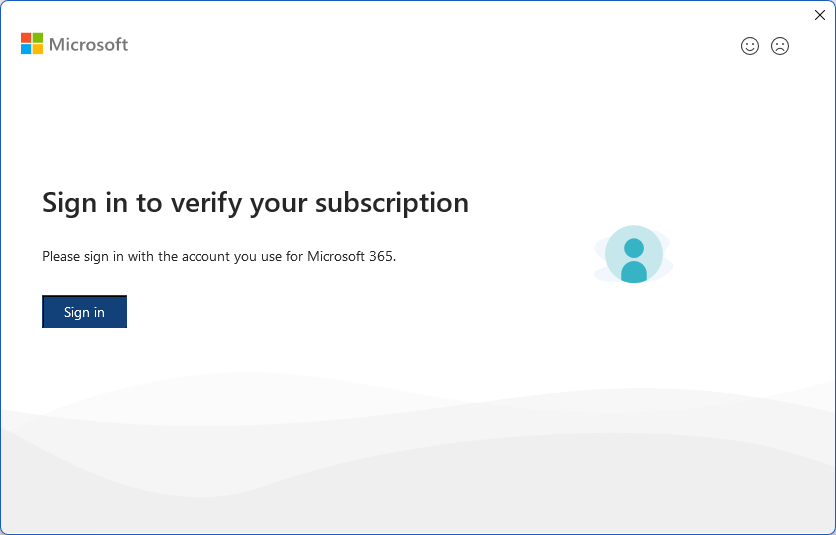
If you’ve ever linked the same email address to both a personal Microsoft account and a work account, you may run into a frustrating activation issue. When you enter your personal email during Office activation, it automatically redirects to the work account login — without giving you the option to choose which account to use.
The workaround
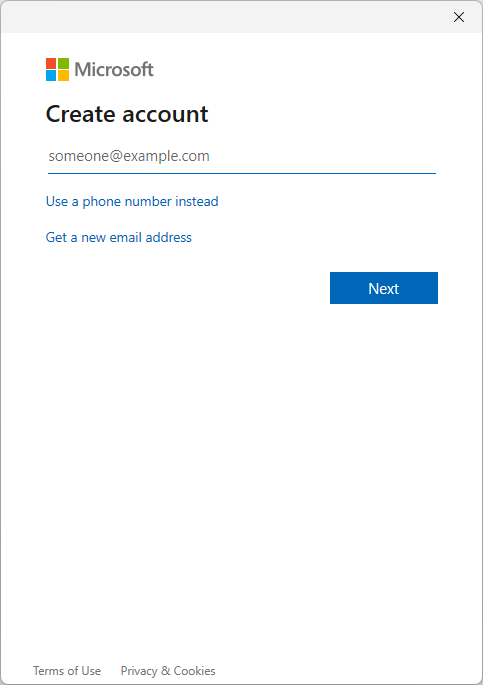
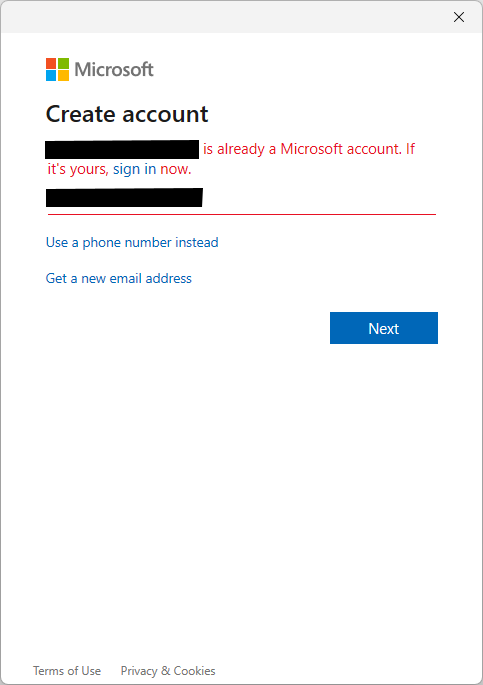
Instead of entering your email directly, click “Create a new account” and then type your existing personal email address. The system will recognize that the account already exists and prompt you to log in normally. This bypasses the automatic redirect to the work account and lets you activate Office with your personal license.
Special case: Microsoft Outlook
Outlook handles activation differently. It only allows creating new @outlook.com or @hotmail.com addresses in the “Create a new account” flow, so the workaround above won’t work directly.
The fix:
- Close Outlook
- Open any other Office application (e.g., Word or Excel)
- Activate it using the workaround described above
- Reopen Outlook
Once another Office app is activated, Outlook should also show as activated when you reopen it.
Written with AI assistance. How that works →
Found this useful?
Get notified when I publish something new. No spam, unsubscribe anytime.