Disable OneDrive in Microsoft Office
Remove OneDrive integration from Microsoft Office using a simple registry tweak.
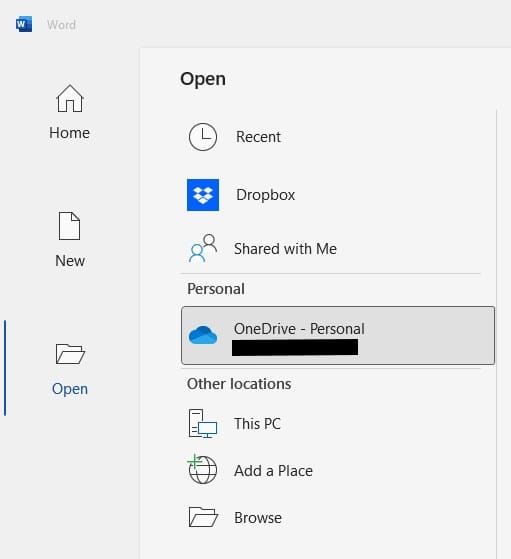
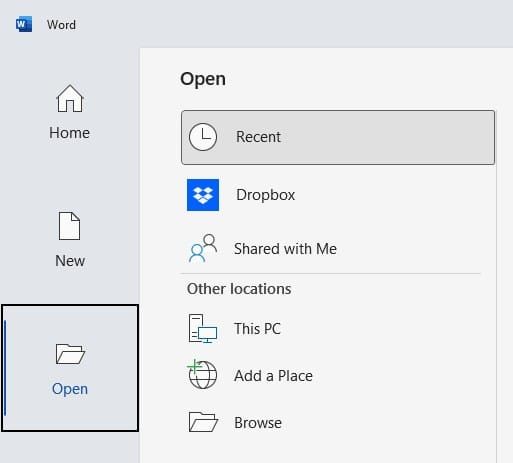
If you want to remove OneDrive from appearing in Microsoft Office’s save dialogs and file locations, you can do so with a single registry entry.
Registry modification
Create or edit the following registry key:
Windows Registry Editor Version 5.00

[HKEY_CURRENT_USER\Software\Microsoft\Office\16.0\Common\Internet]
"OnlineStorage"=dword:00000003
This applies to Office 2016 and later (all use version 16.0 in the registry path).
The OnlineStorage value is a bitmask that controls which cloud locations are hidden:
| Value | Effect |
|---|---|
1 | Hide OneDrive Personal only |
2 | Hide OneDrive for Business and SharePoint |
3 | Hide all OneDrive and SharePoint locations |
You can either:
- Open Registry Editor and navigate to the key manually
- Download and double-click the
.regfile below to apply it
Note: On managed work computers, your organization’s Group Policy may override this setting.
After applying the change and restarting Office, OneDrive will no longer appear as a save location.
Written with AI assistance. How that works →
Found this useful?
Get notified when I publish something new. No spam, unsubscribe anytime.